

How to Install, activate, configure, use, setup, and managing WordPress Plugins is easy.
by: Revengsky Joseph D. Reyes (a.k.a. rjdreyes – jcyberinux.com)
Step by step guide, to install WordPress Plugins, there are differents ways / instructions do it.
Here are the easy and fastest way on how to install, configure and use WordPress Plugins. (Note : By doing this, I expected you have an internet connection and your own webhost or webserver on your localhost)
Installing WordPress Plugins by using Search
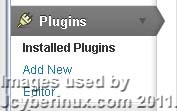
1. Login to your WordPress Administrator Account, to your Dashboard, go to Plugins then click Add New.

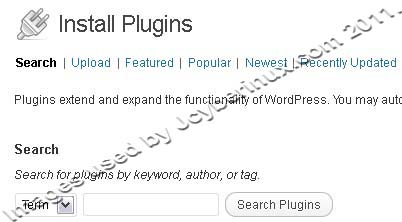
2. Click on Search, then type your desire plugins name, keyword, tag or author. Then click Search Plugins, it will show you relevant or exact search results.
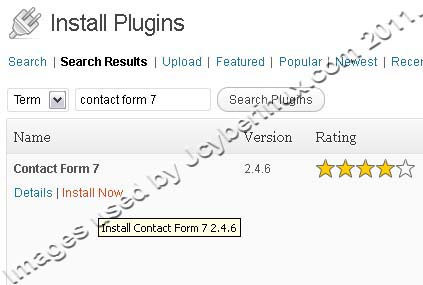
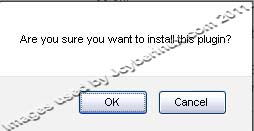
3. Click to Install Now, to install the chosen plugins. The dialog prompt ask you to confirm to install the plugins, then click OK, to install it.
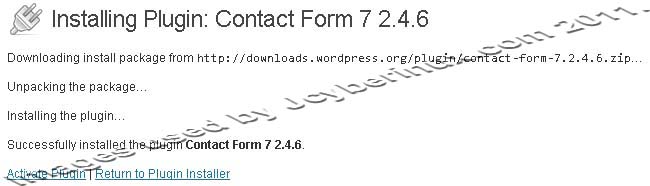
4. Then message will follow installing plugin, then message that the plugin is successfully installed. Then you can click on Return to Plugin Installer to install another plugins or activate the plugin you current installed.
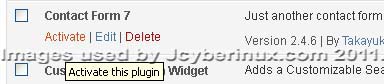
5. You can go back to your Installed Plugins, to check if you’re plugin installed correctly and you can activate it at any time you want.
Installing WordPress Plugins by using Upload
1. To install WordPress plugins by using upload, you already have a zip file of your chosen plugins. (There are many WordPress Plugins out there, go to WordPress Official Site and search for recommended Plugins.)
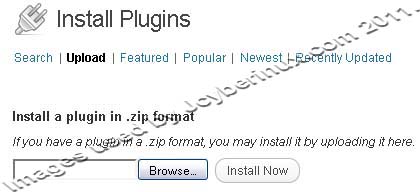
2. After you downloaded certain WordPress Plugins (on .zip file), click Browse to browse to your local drive and locate your WordPress Plugin .zip file, then afterwards, click Install Now.
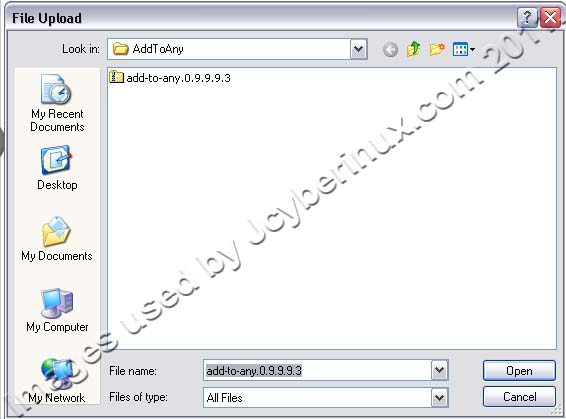
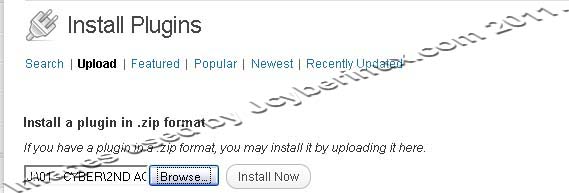
3. Then message will follow installing plugin, then message that the plugin is successfully installed. You can go back to your Installed Plugins, to check if you’re plugin installed correctly and you can activate it at any time you want.

Installing WordPress Plugins by using Webhost cPanel
1. Login to your Webhost cPanel account, at your account, go to Files, then click to File Manager, choose Directory Selection to Web Root then click Go.

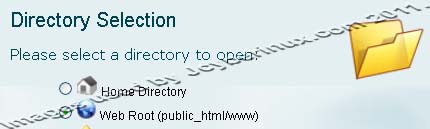
2. Go to your wordpress directory (if any but I am sure you have), then click to wp-content directory, then click to plugins directory.
 —>
—>
3. At your plugins directory, click to Upload. Then new web browser tab will show, for uploading the files. (Use this to upload WordPress Plugins .zip file), browse to your local drive and locate your WordPress Plugins .zip file.

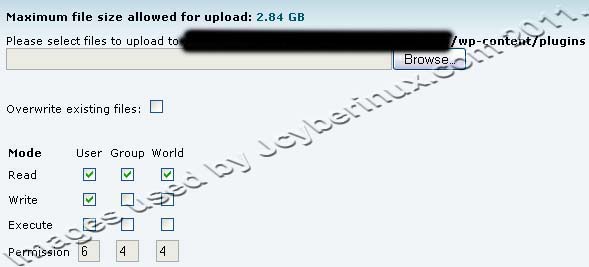
4. After that, it will automatically upload the .zip file, then wait until it finish. (There is a progress bar indication and it will tell you if it’s already complete.)
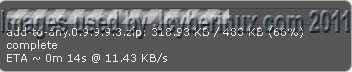

5. After the upload is complete. Close the web broswer tab (for the uploading file only). Then return to cPanel, on the plugins directory. (If the chosen WordPress Plugins .zip file hasn’t shown yet, try to refresh the page, then it should be there.)

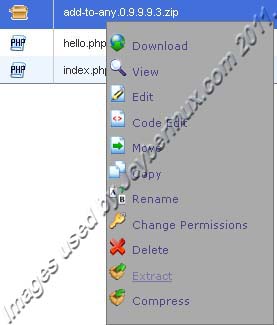
6. Then extract the WordPress Plugins .zip file, right-click then select Extract. Then extracted file will be shown, delete the WordPress Plugins .zip file after you extract the file.

7. Go back to your Installed Plugins, to check if you’re plugin installed correctly and you can activate it at any time you want.
Using those WordPress Plugins might help you on the long run, whether you published your articles or blogs on the website, even on the security side. I’ll be discussing some of the useful WordPress Plugins soon, that you can used and recommended on your blog website.
Hopefully this helps you out 🙂
Related Entries / References :
How to Reset a WordPress Password (Blog Admin Account) by Jcyberinux
How To Install WordPress Locally Using WAMP by Jcyberinux
WordPress.org – Official Site







