

How to kill a process involve on a certain file or folder, in order to do the necessary action like move, delete or rename?
by: Revengksky Joseph D. Reyes (a.k.a rjdreyes – jcyberinux.com)

Do you experience an issue like, Cannot delete file: Access is denied?, The source or destination file may be in use?, The file is in use by another program or user?, Make sure the disk is not full or write-protected and that the file is not currently in use, etc…
I came across to the web, to find a free tools for Windows, to help me access some protected files, that I cannot change which is within my own account. Luckily, on searching, I find Unlocker, the best and easy way to unlock protected files and manage the files easily.
The Unlocker is available for Windows 2000/XP/2003/Vista/7, it is small (only around 2MB) but yet a power package feature, easy to use, powerful tool to extinguish does annoying windows error handling.
Here’s the steps / instructions on how to install Unlocker on Windows :
1. Download Unlocker for Windows on Official Site. Run the installer afterwards.
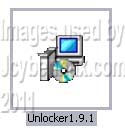
2. Sometimes Security Warning alerts unknown software, so ignore it (Do you want to run the file?), click Run.
3. Installer language appears, Select Language. Default is English. Click Ok afterwards.

4. Welcome Setup Wizard appears, click Next.

5. License Agreement appears, click the I Agree, after you read the agreement.

6. Destination Folder, Choose Install Location (Installation path were you to put the program). You can browse to then select your destination folder or select the default, then click Next.

7. Choose Components, you may select all or choose the following components you want to install. Then click Install.
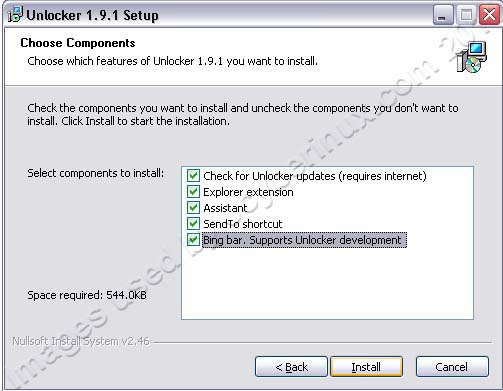
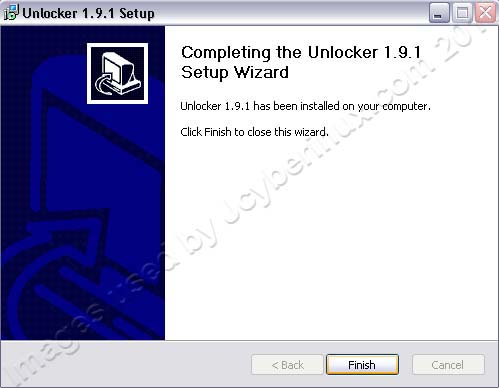
8. Installation begins and kindly wait, afterwards Installation is complete, click Finish.
9. You will see the Unlocker icon at your taskbar notification. You may uncheck or disable the Autostart feature. (this feature makes the unlocker automatic killer process, it will prompt you an option or action to do next, while cannot change your files due to the process involved.)


10. To unlock or kill a process, just right-click the file or folder that involved an issue, then select Unlocker, choose an action to do next. You may click first the Kill Process, or better yet Unlock All so that it will start your action immediately.


Enjoy using unlocker to kill the process and start to move, delete or rename a folder or a file.

I hope it helps you out 🙂
The good thing is 100% Freeware Software! So try it now! 🙂
Related Entries / References :
Unlocker – Easy way to unlock files and folders to kill interfering process by Jcyberinux
Unlocker Official Site
Download Unlocker Official Site







Great website. Lots of helpful information here. I am sending it to a few pals ans additionally sharing in delicious. And of course, thanks to your sweat!